VMware ESXi Installation#
This guide walks through the installation of VMware ESXi 7.0 U3d on a dedicated HPE server using the iLO interface (Virtual Media / Virtual Boot) with a 3PAR disk connected via Fibre Channel (FC).
Installation#
Before starting the installation, create a support ticket to configure LAG on the switch (one port will be temporarily disabled).
The ISO image is available here: http://45.144.49.67/images/ESXI-7.0U3d.iso
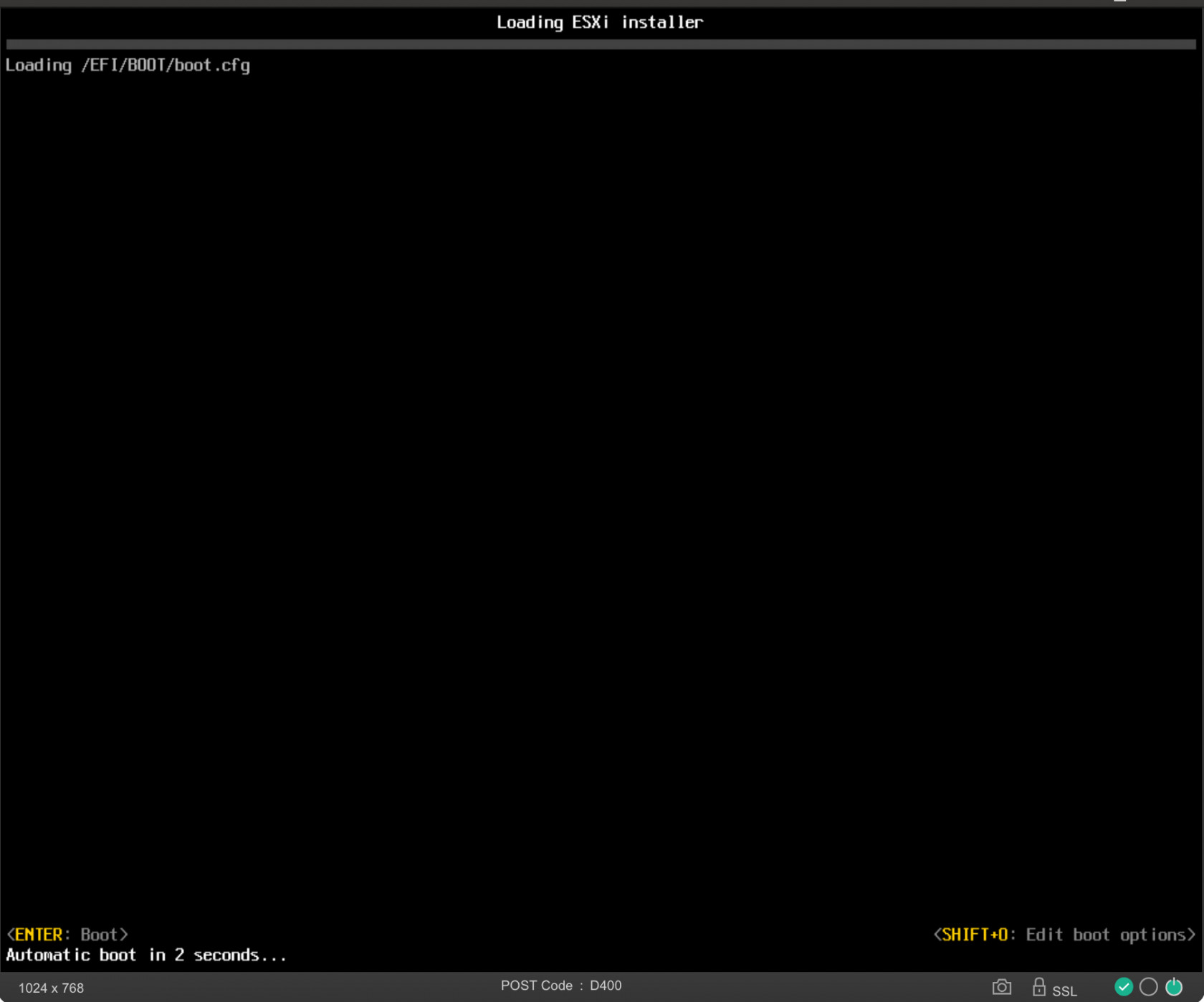
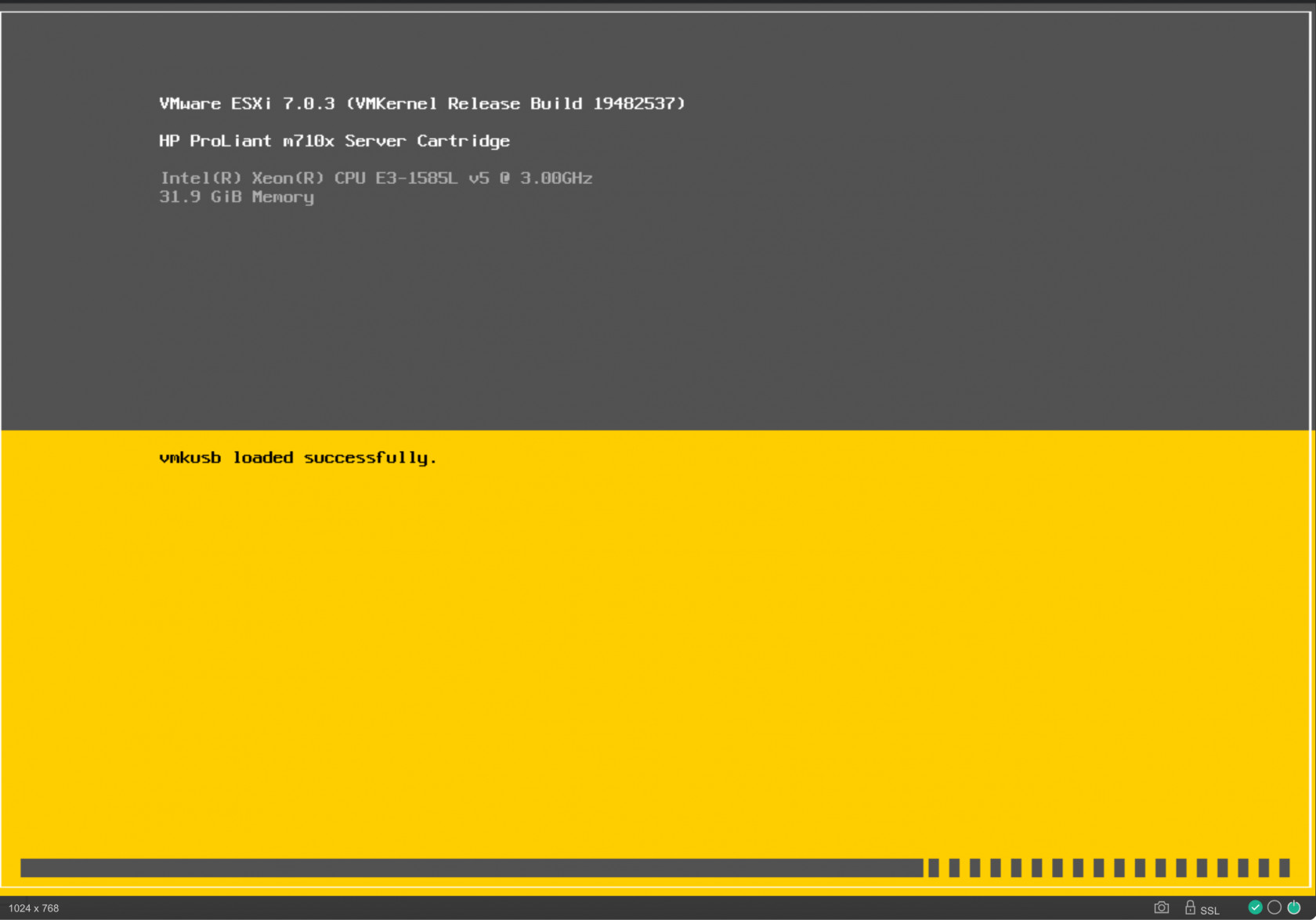
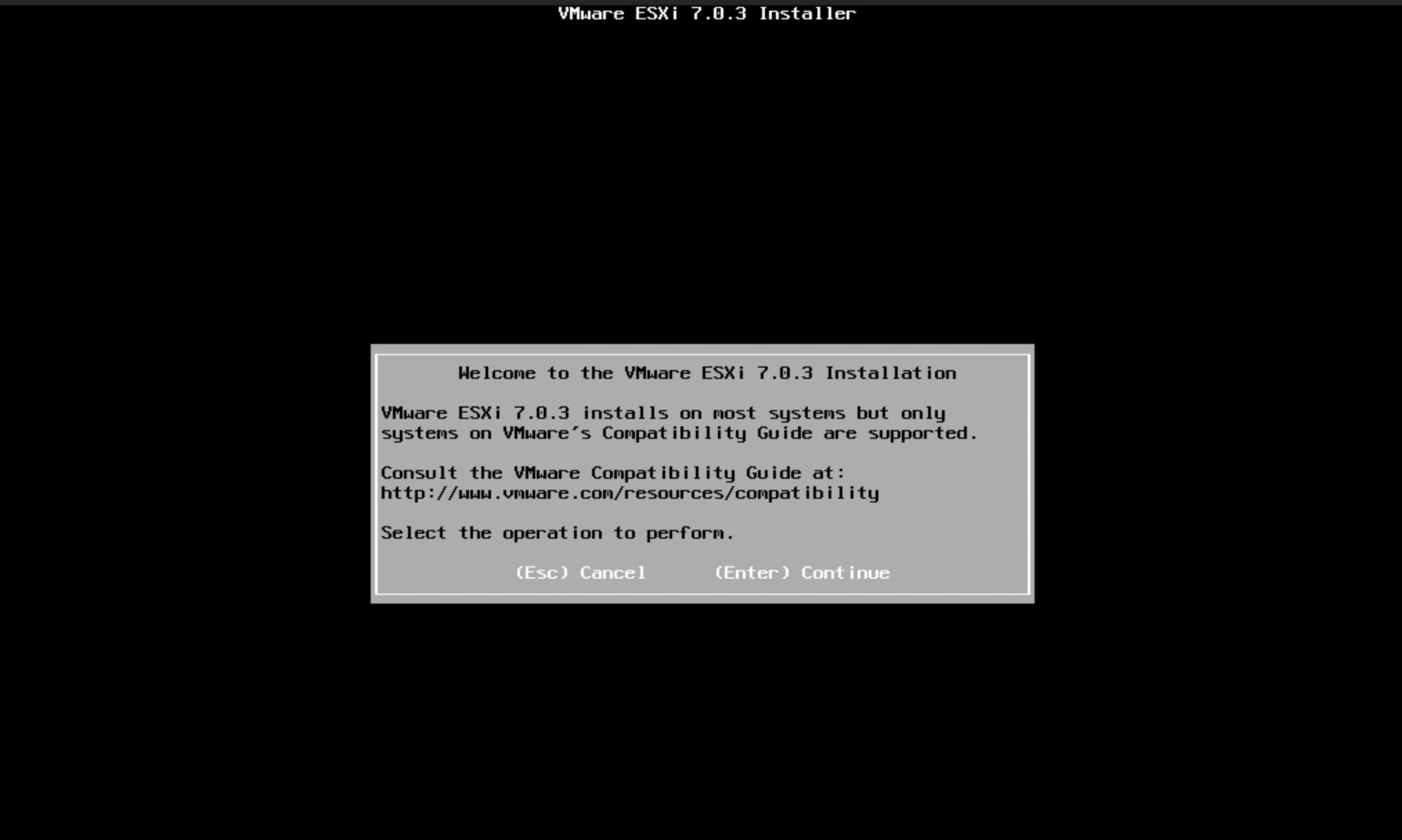
In the ESXi bootloader, select ESXi-7.0.0… installer and press Enter.
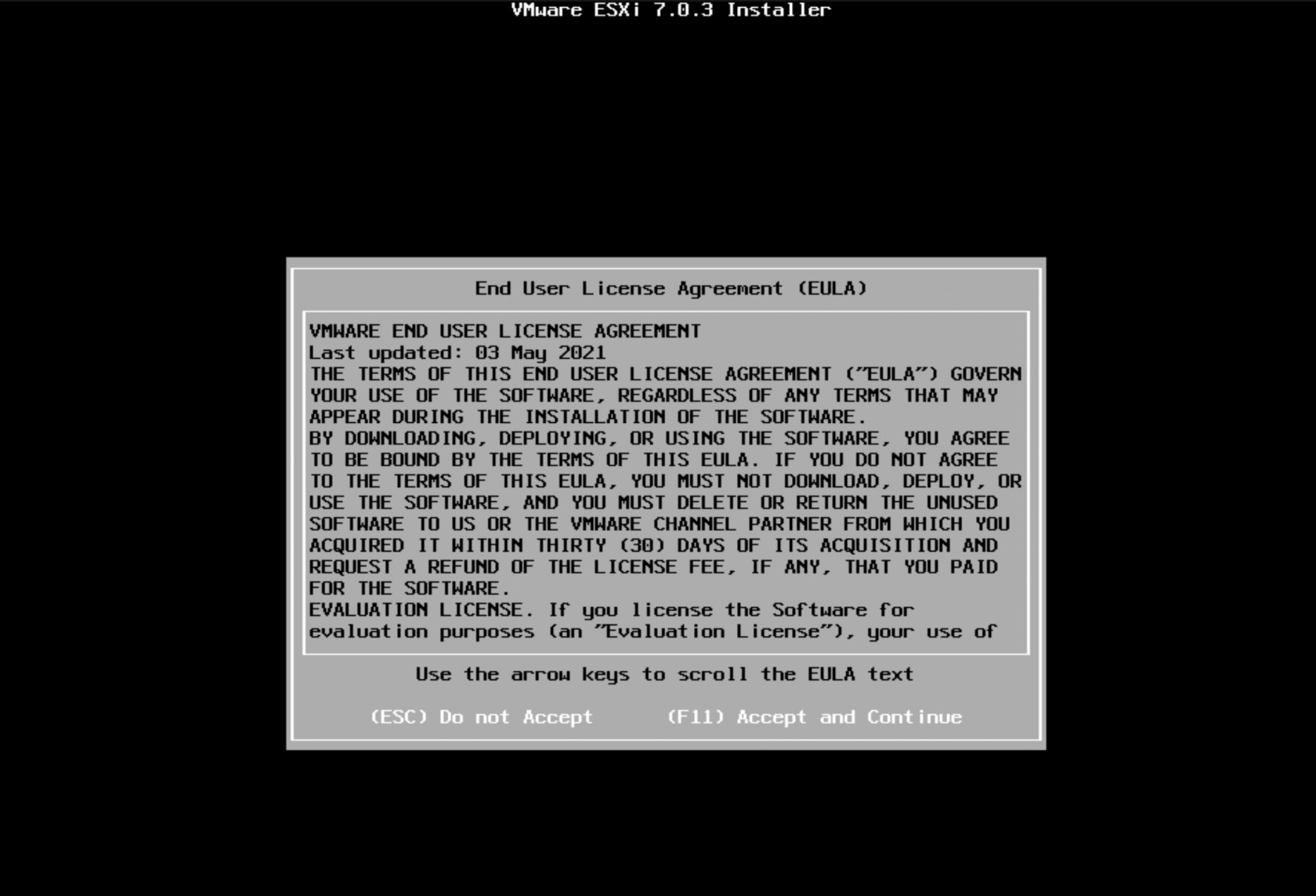
Accept the EULA (End User License Agreement): press F11 to accept.
Volume selection#
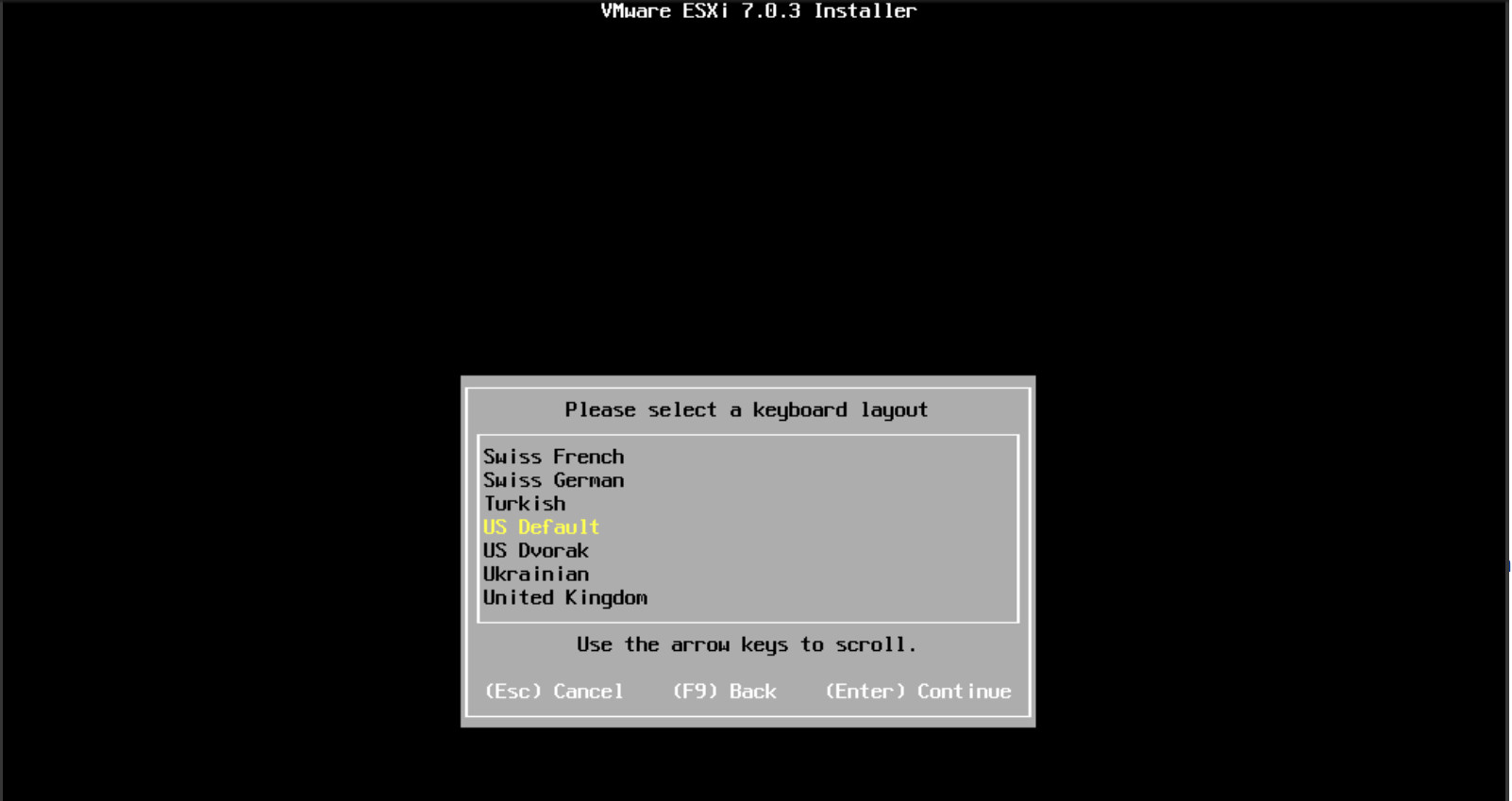
In the Keyboard layout section, choose the appropriate layout (for example, US Default).
In Select a disk to install or upgrade ESXi, you will see a list of all available volumes:
Local volumes — displayed as mpx.vmhbaX or t10.XXX.
FC-connected disks — displayed as naa.XXXX (LUN identifier from SAN).
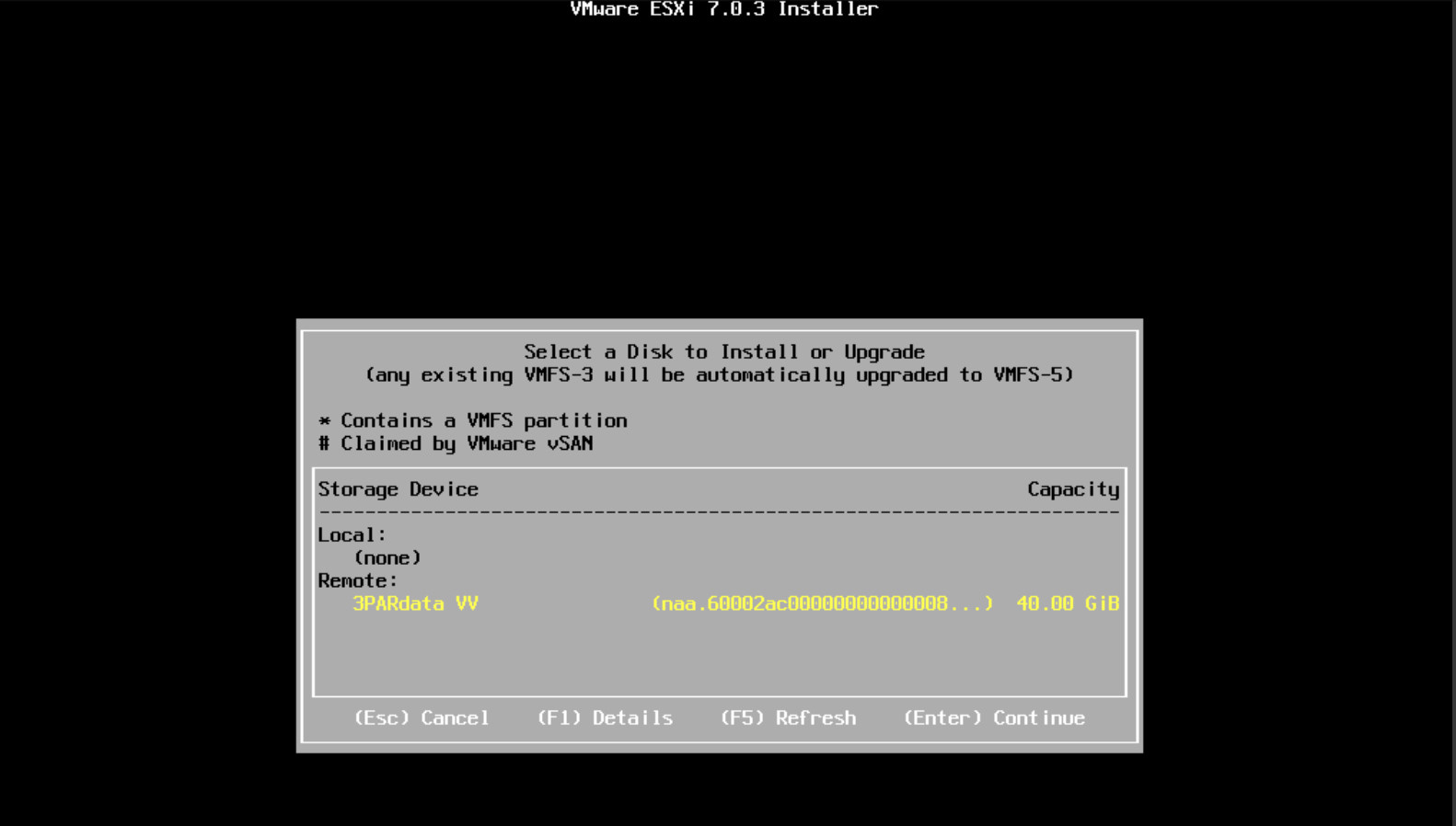
Select the FC disk (for example, naa.6002ac000000000000821a001e8cc, based on your earlier screenshot).
Warning
All data on the selected disk will be erased. Confirm your choice and press Enter.
Configuration#
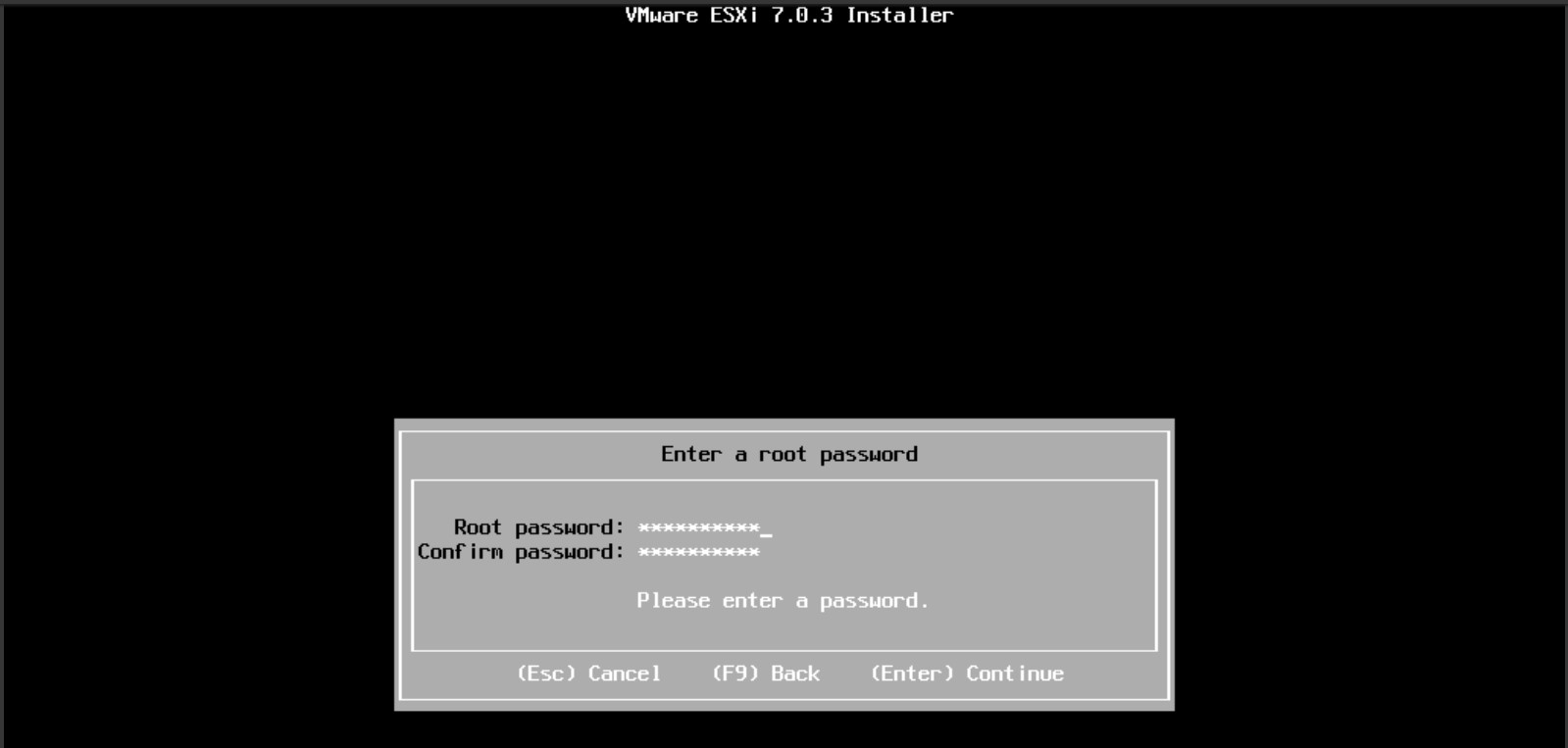
Set a strong root password (minimum 8 characters, including letters, numbers, and symbols).
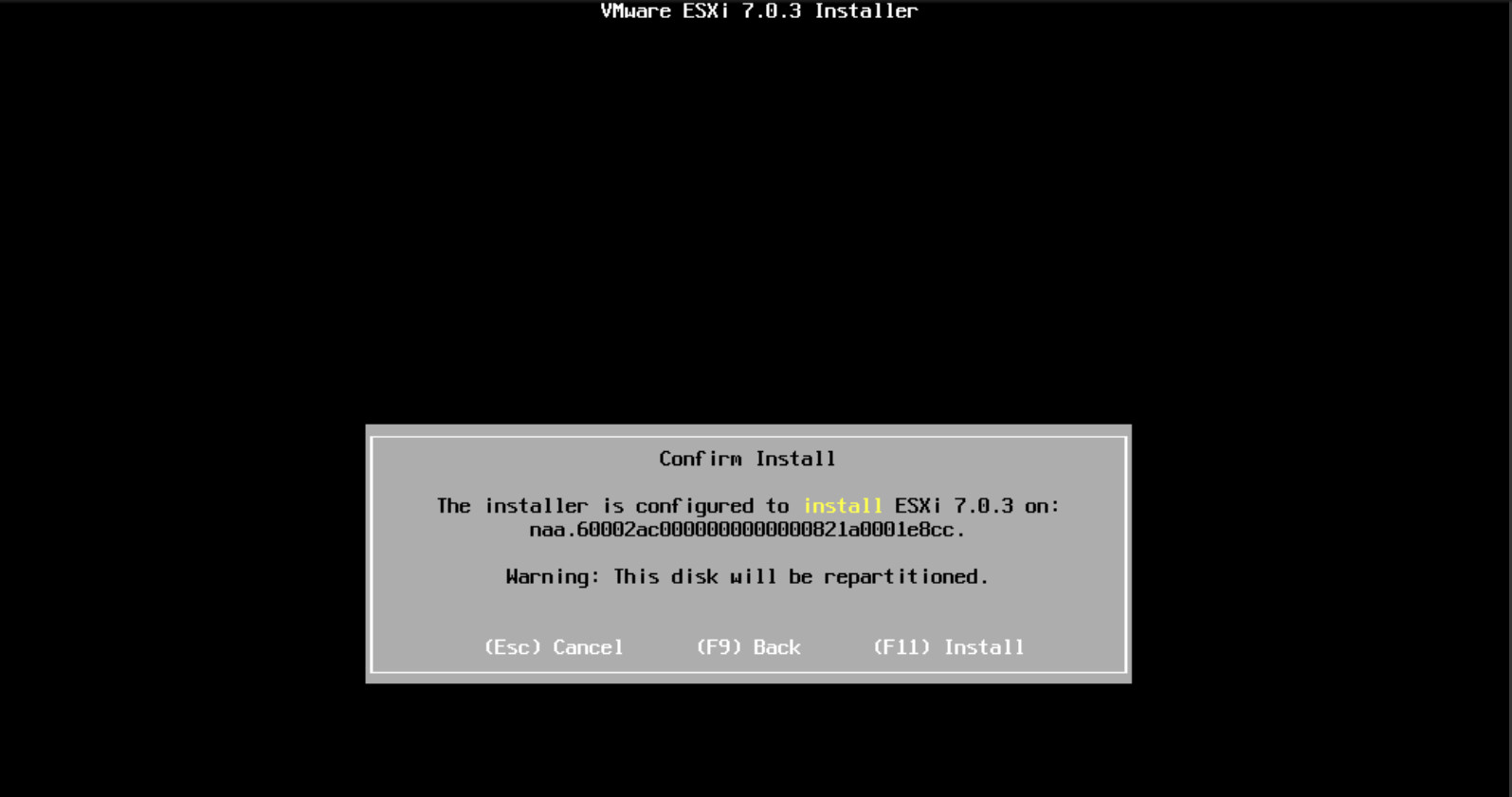
To start installation, press F11. The installation will take approximately 5–15 minutes, depending on the disk and server performance.
Rebooting the server#
After installation is complete, press Enter to reboot. The server will boot into the installed ESXi system.
In the iLO Remote Console, you will see the ESXi boot screen (DCUI — Direct Console User Interface, blue screen with host information).
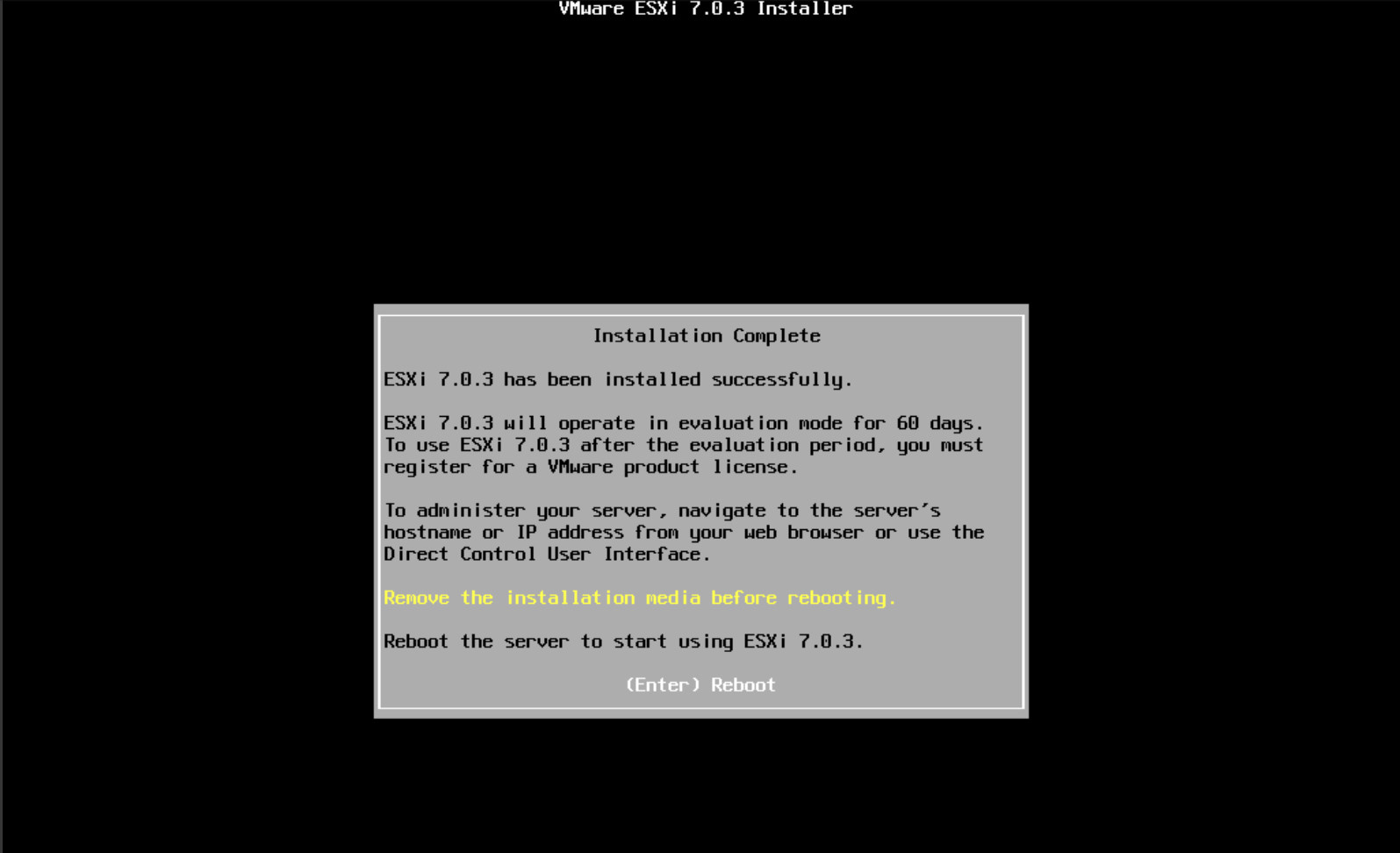
Verify access to ESXi via iLO.
After boot, the DCUI screen will appear in the iLO Remote Console.
If networking is configured (DHCP by default), the host will obtain an IP address, though it may appear unconfigured initially.
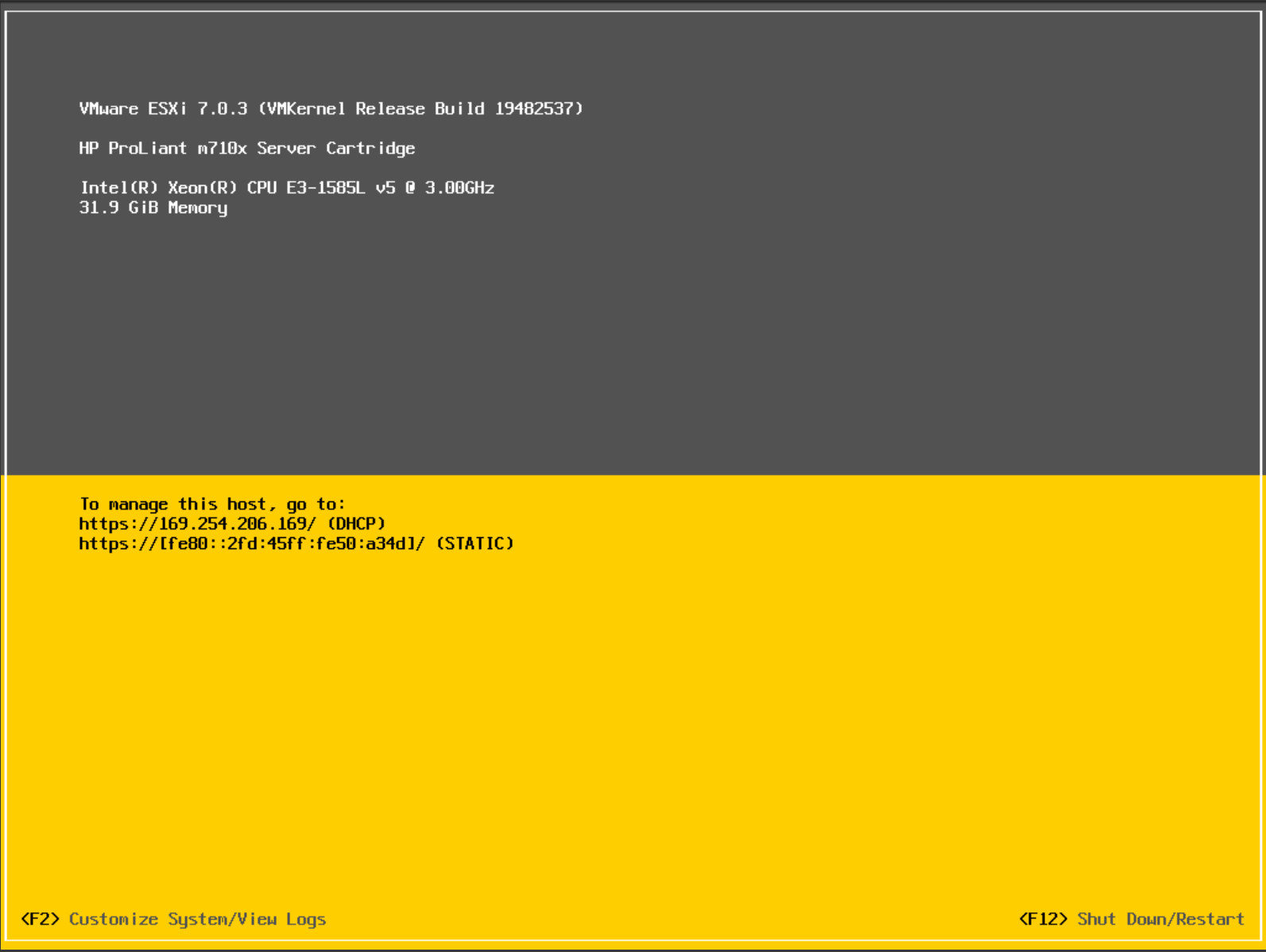
Check the basic system state in DCUI. Press F2 and log in using the root password. Open System Customization.
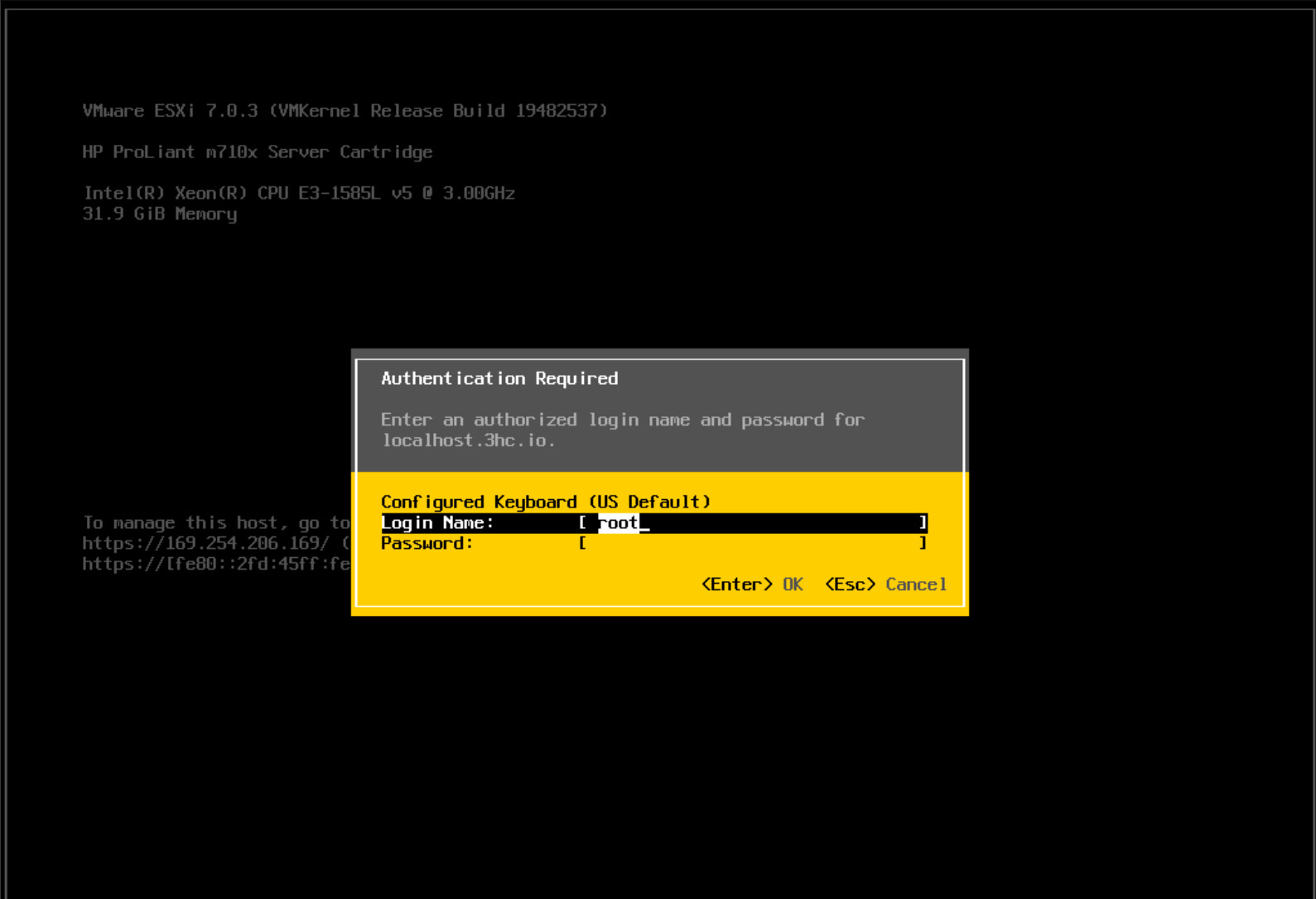
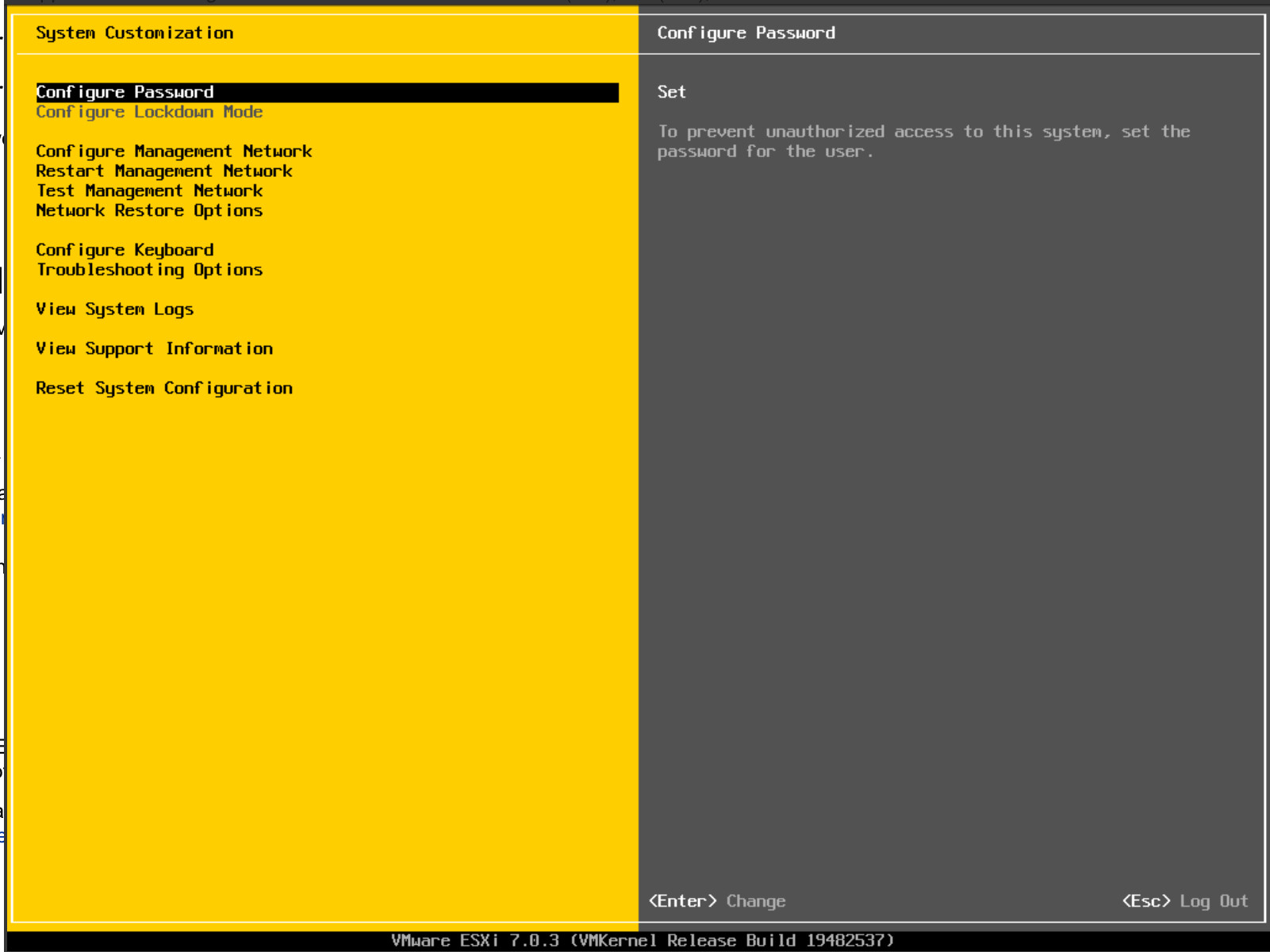
Network configuration via iLO (DCUI)#
All settings are configured in DCUI via the iLO Remote Console: static IP, gateway, DNS.
To configure the Management Network:
Go to Configure Management Network → Network Adapters, enable both network ports and Press Enter.
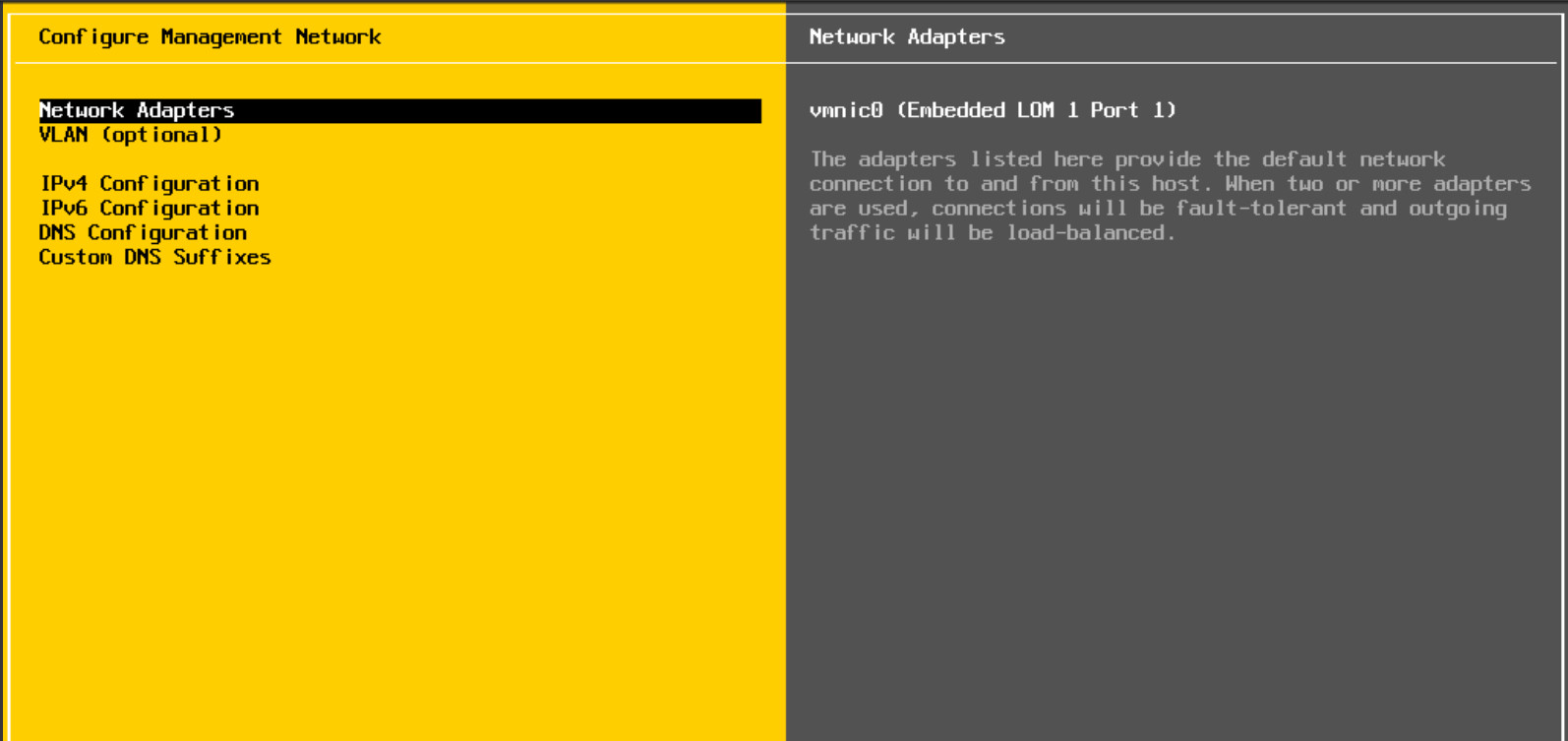
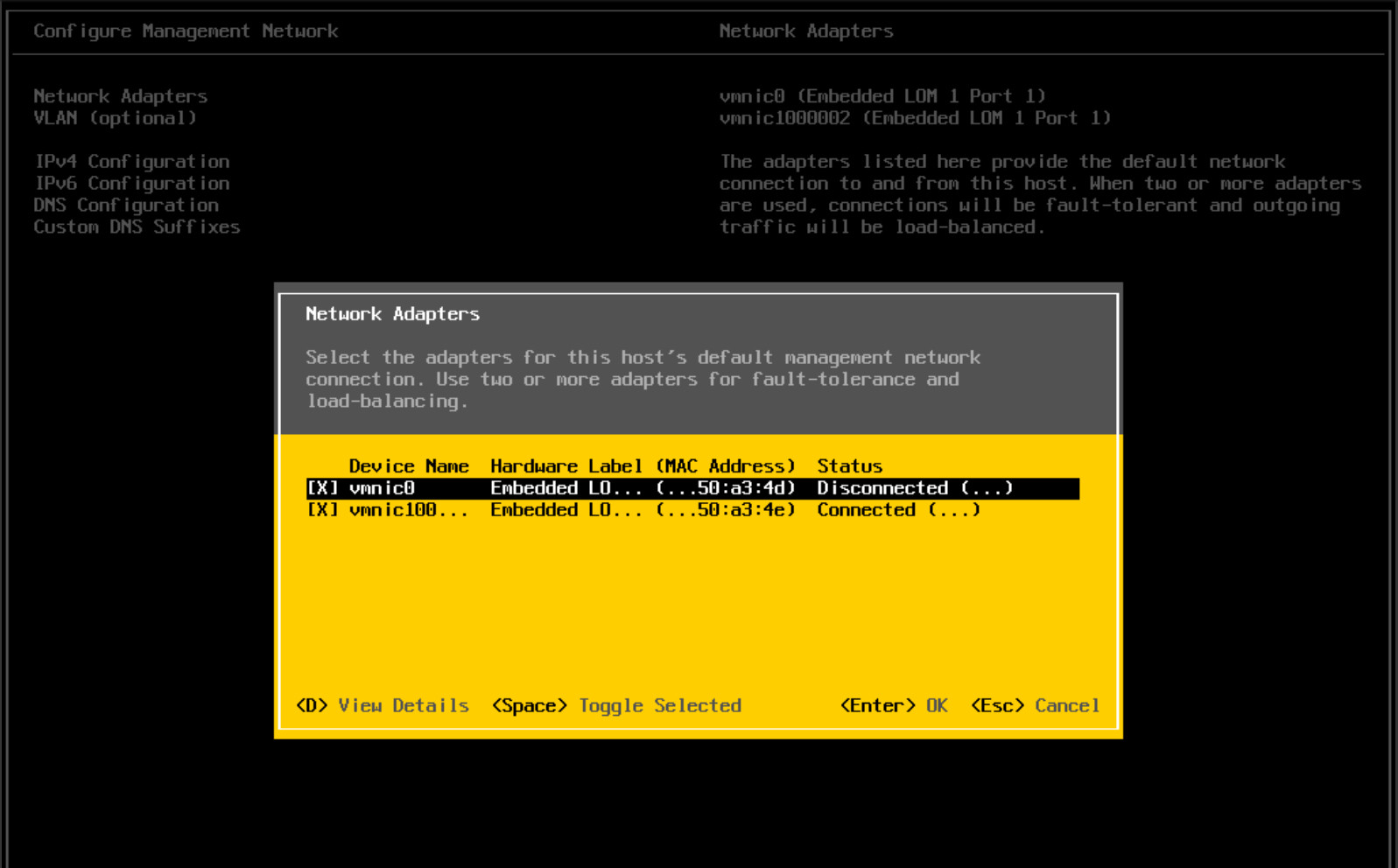
Configure Configure Management Network → IPv4 Configuration → Set static IPv4 address:
IPv4 Address: enter a static IP (e.g., 45.144.50.163).
Subnet Mask: e.g., 255.255.255.0.
Default Gateway: IP, e.g., 45.144.50.1.
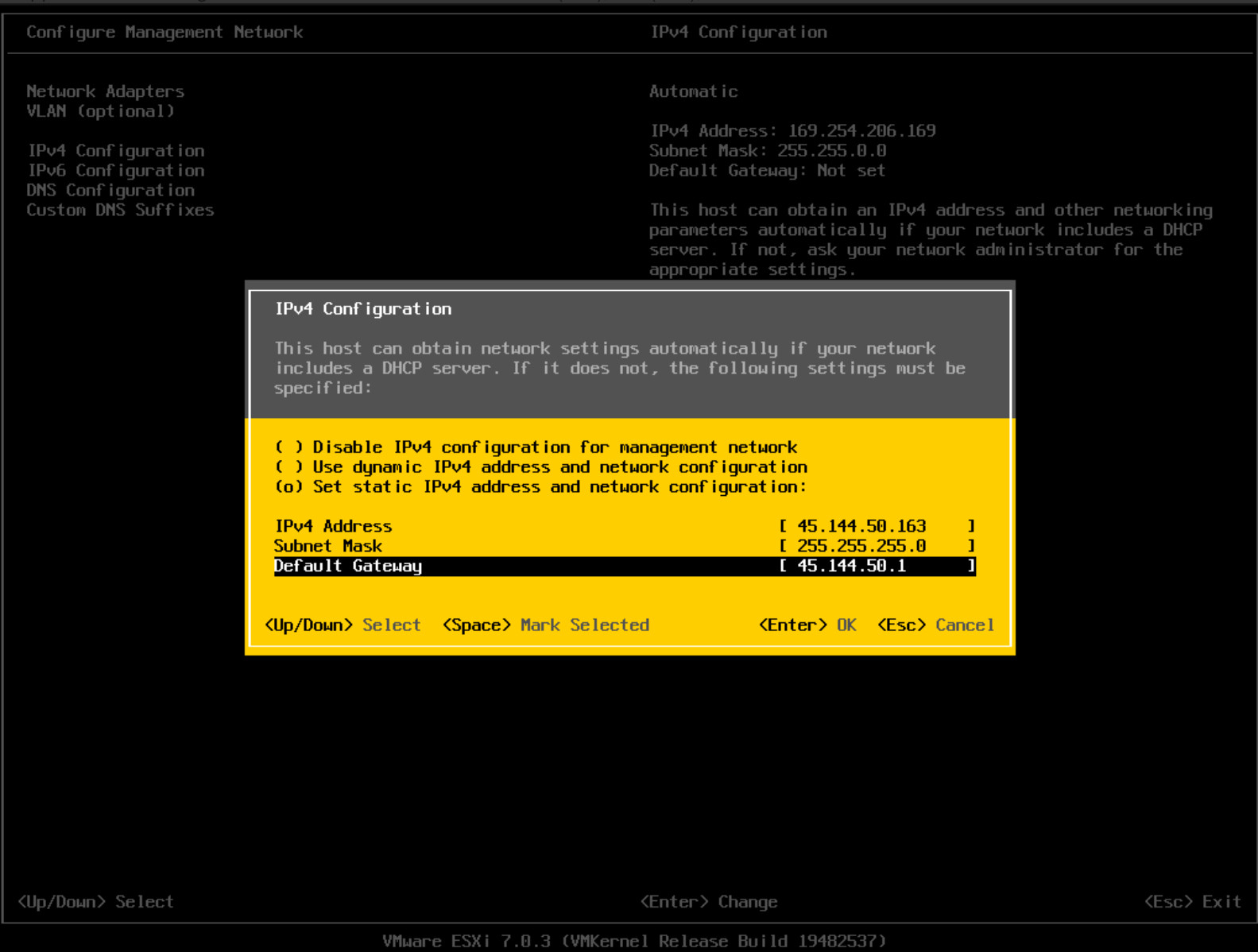
Configure DNS Configuration → Use the following DNS server addresses:
Primary DNS Server: e.g., 45.144.48.252.
Alternate DNS Server: e.g., 45.144.48.253.
Hostname: e.g., esxi-host.local.
Confirm changes Y → Restart Management Network? → Y. Wait ~30 seconds.
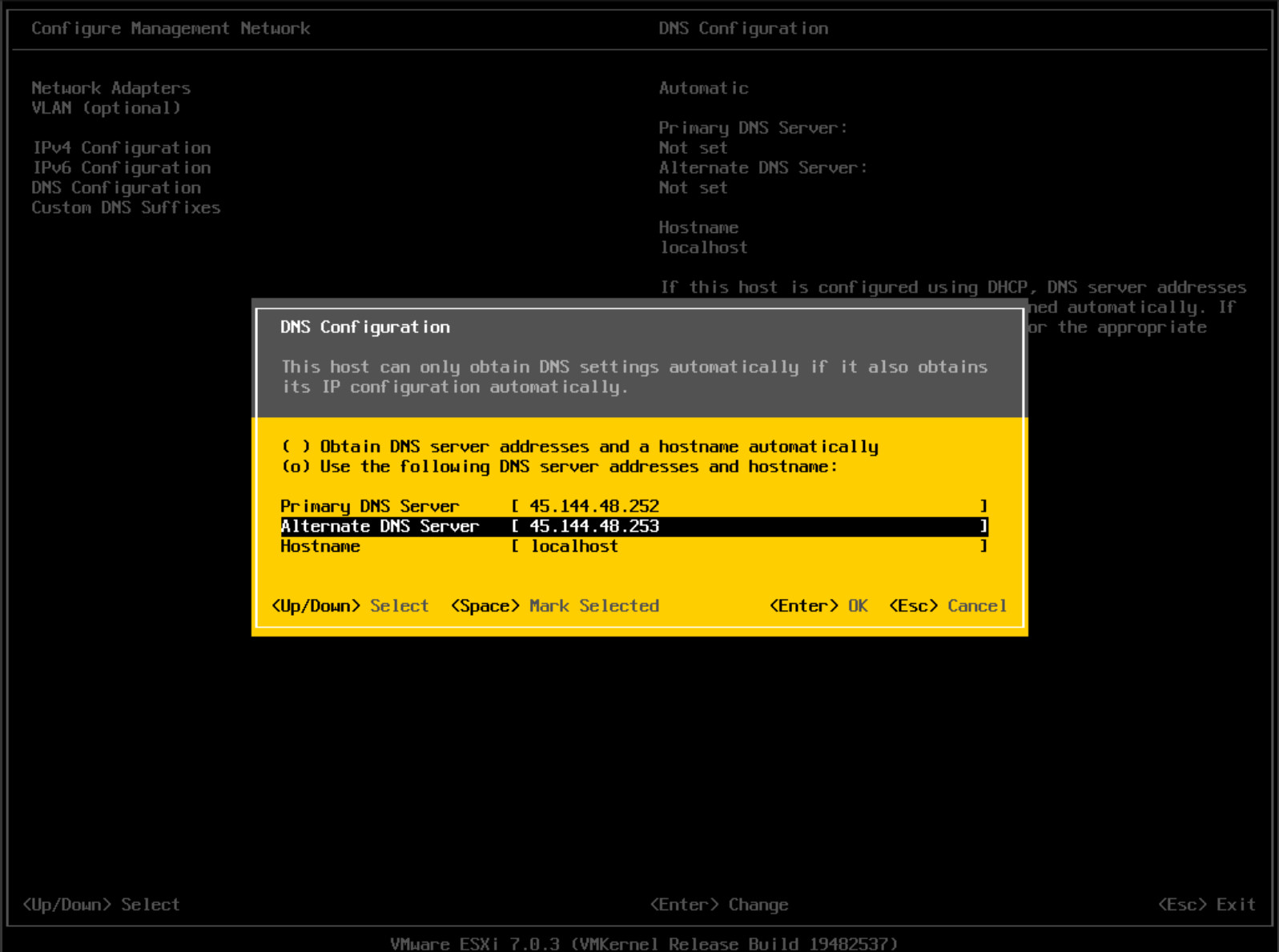
Return to System Customization and test the network:
In DCUI, run:
Test Management Network
Check connectivity to, for example:
8.8.8.8
If the status is OK, the network is configured correctly.
If it filed, recheck the entered parameters.
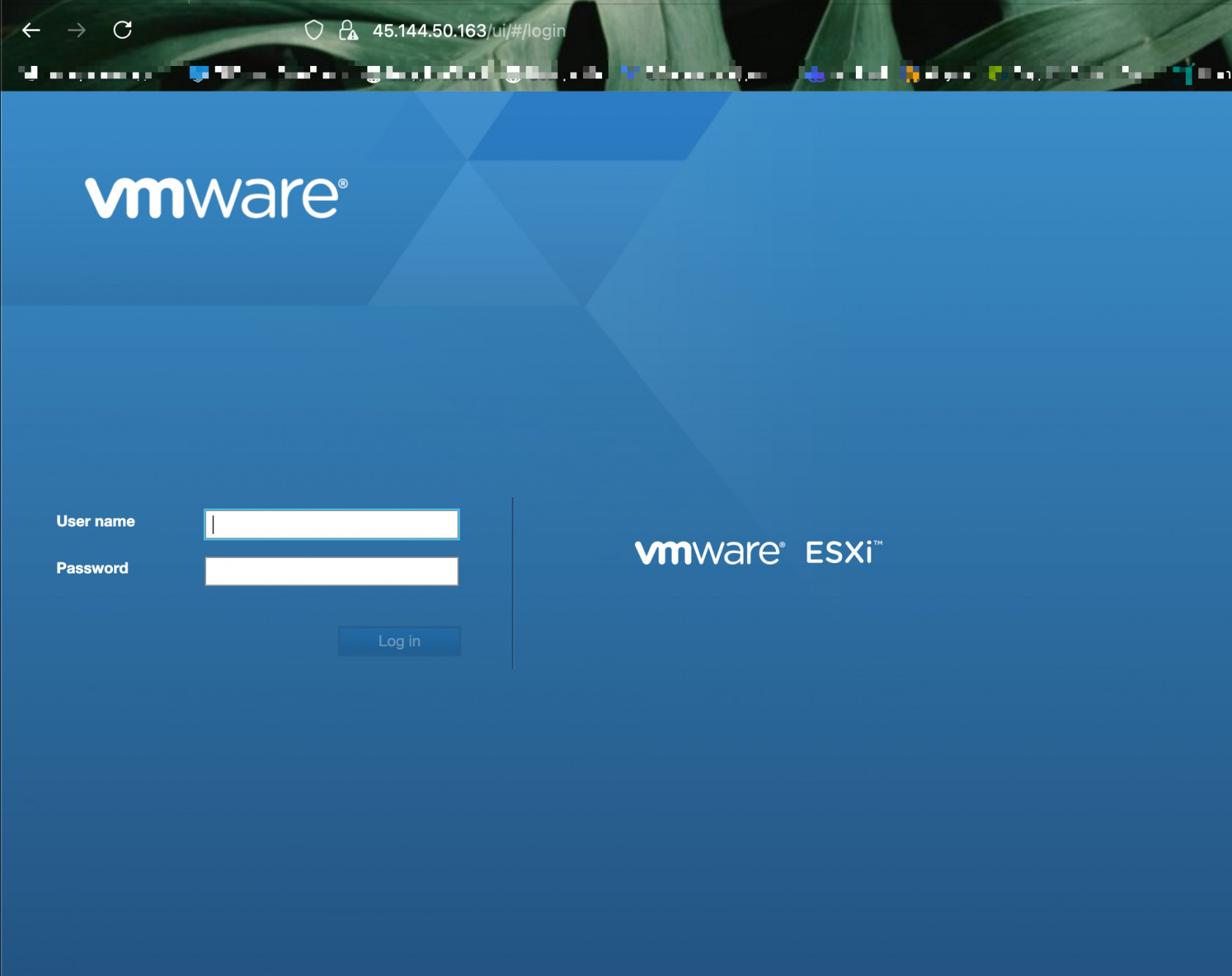
After successful network verification, open: https://<ваш_IP> → log in as root.
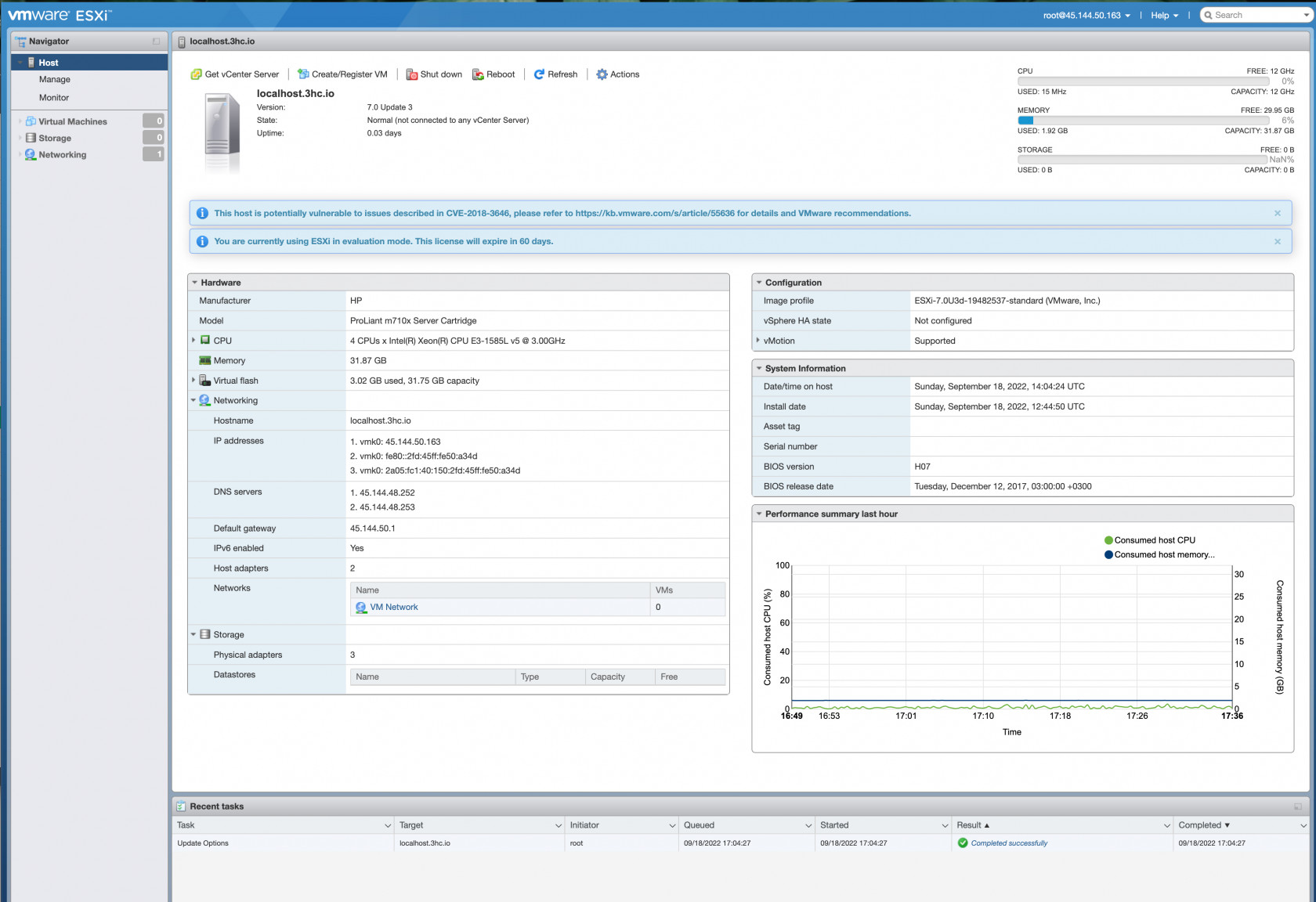
Go to: Networking → VMkernel NICs, ensure that vmk0 has the correct static IP, subnet mask, gateway, and DNS.
Also verify DNS settings: Host → Manage → Networking → DNS.
Network Adapter Configuration#
For redundancy, combine two NICs into a vSwitch with load balancing (Route based on IP hash). Before starting, ensure one switch port (e.g., Ethernet2) is disabled.
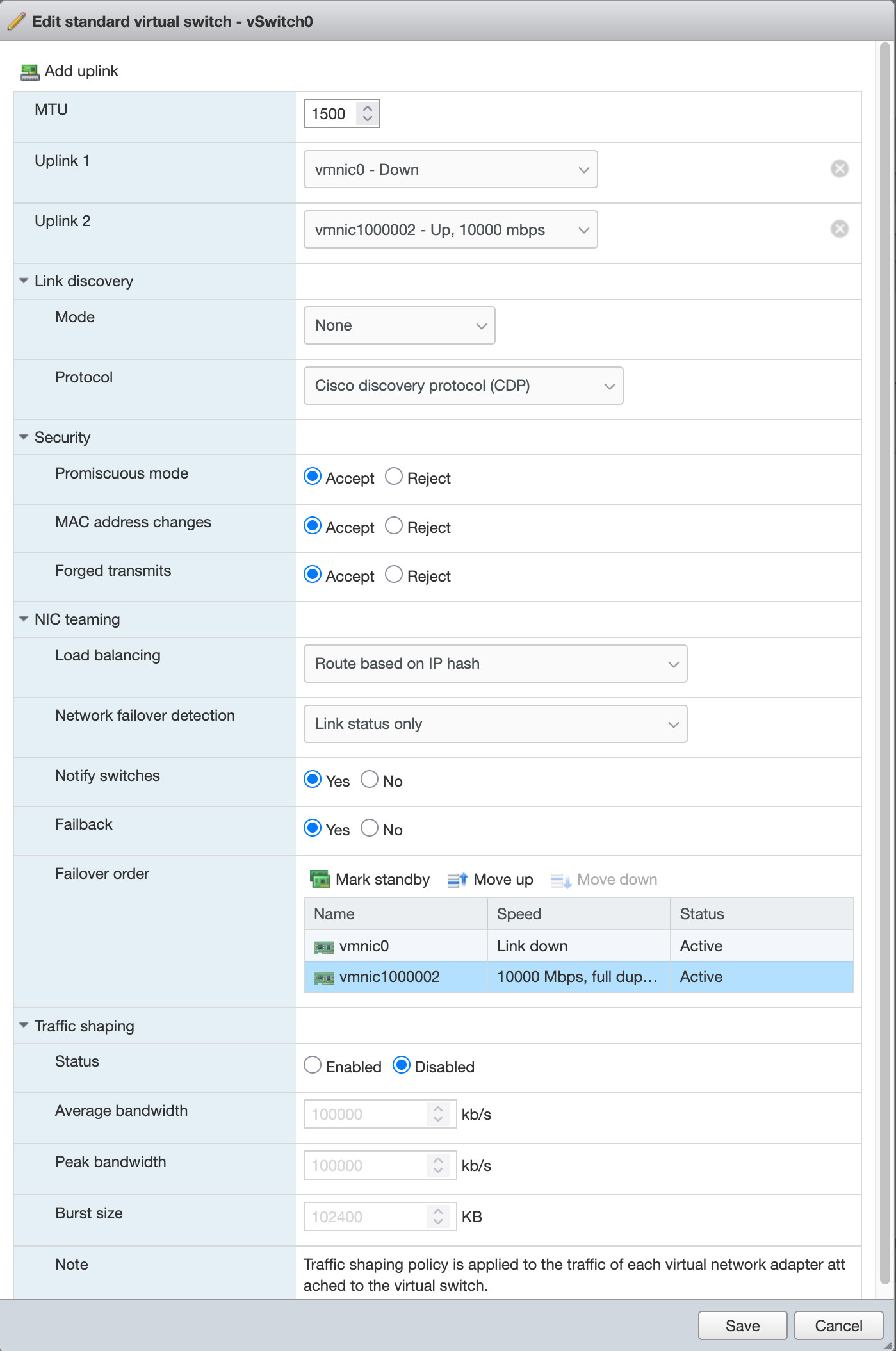
Via ESXi Web Interface (recommended): - Networking → Virtual Switches → Add standard virtual switch.
Name: vSwitch0.
Uplinks: add available adapters (e.g., vmnic0, vmnic1000002).
- Link discovery:
Mode: None
Protocol: Cisco discovery protocol (CDP)
Security: - Promiscuous mode: Accept - MAC address changes: Accept - Forged transmits: Accept
NIC teaming: - Load balancing: Route based on IP hash - Network failover detection: Link status only - Notify switches: Yes - Failback: Yes - Failover order: Status: both adapters set to Active
Click Save and wait for changes to apply.
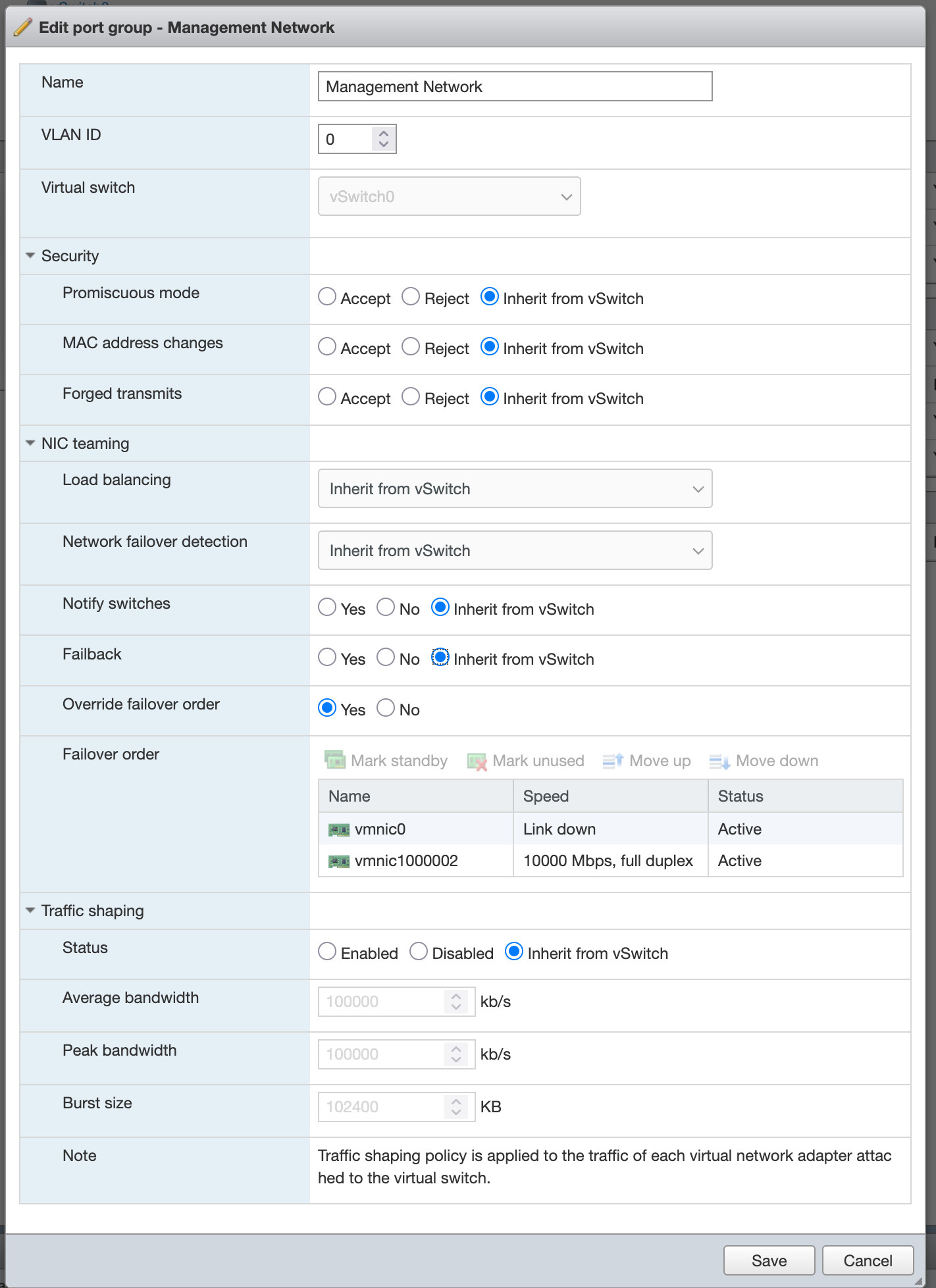
Port groups → Add port group (for Management, if needed: Name = Management Network, VLAN ID if required)..
- Link discovery:
Mode: None
Protocol: Cisco discovery protocol (CDP)
Security: - Promiscuous mode: Inherit from vSwitch - MAC address changes: Inherit from vSwitch - Forged transmits: Inherit from vSwitch
NIC teaming: - Load balancing: Route based on IP hash - Network failover detection: Link status only - Notify switches: Inherit from vSwitch - Failback: Inherit from vSwitch - Failover order:
Active adapters: vmnic0, vmnic1.
Standby/Unused: Нет.
Status: both adapters set to Active
Click Save and wait for changes.
If settings reset after applying, reapply them exactly as configured on the parent vSwitch.
Multipath configuration check#
In ESXi, multipathing is usually set to Round Robin by default, but this should be verified, as defaults may vary between versions.
For FC disks, Round Robin (RR) is recommended for load balancing and fault tolerance in SAN environments.
Via ESXi Web Interface#
Go to: Storage → Devices → Выберите FC-диск (naa.XXXX).
Check: * Path Selection Policy (PSP): should be Round Robin (RR), MRU, or Fixed → RR is recommended * Number of paths: should be >1 * Active paths should show status Active (I/O)
If the Paths/Multipathing section is not available (often for boot disks), use SSH.
Via SSH (Optional)#
Enable SSH: Host → Manage → Services (or Configure → Services, if enabled). Find TSM-SSH, click Actions → Start and start.
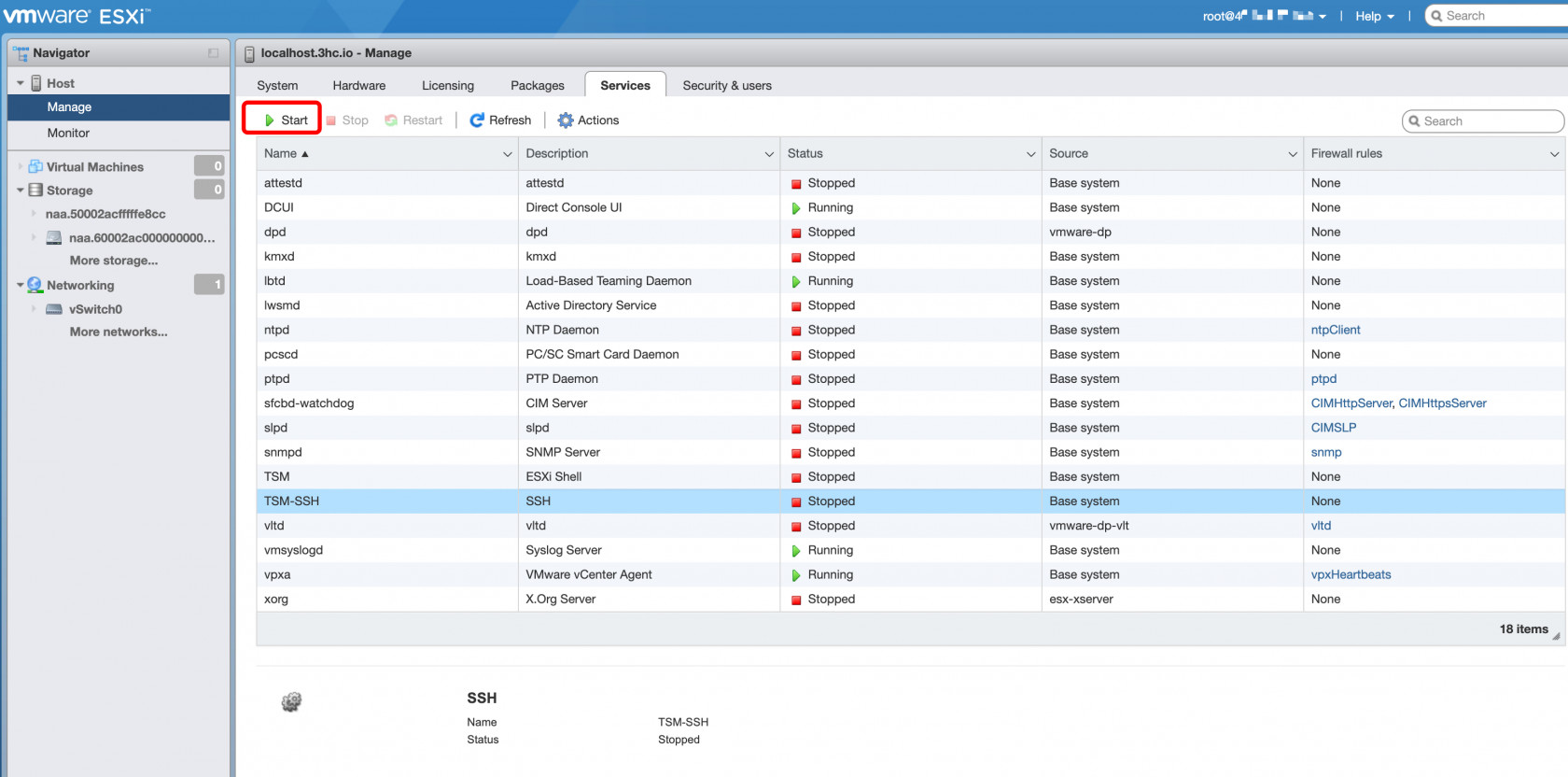
Connect via SSH and run:
1. Check pathes and policies:
esxcli storage nmp device list
Find your disk (naa.XXXX) and verify: path Selection Policy (PSP): VMW_PSP_RR (Round Robin) и Paths: >1 (Active, Standby).
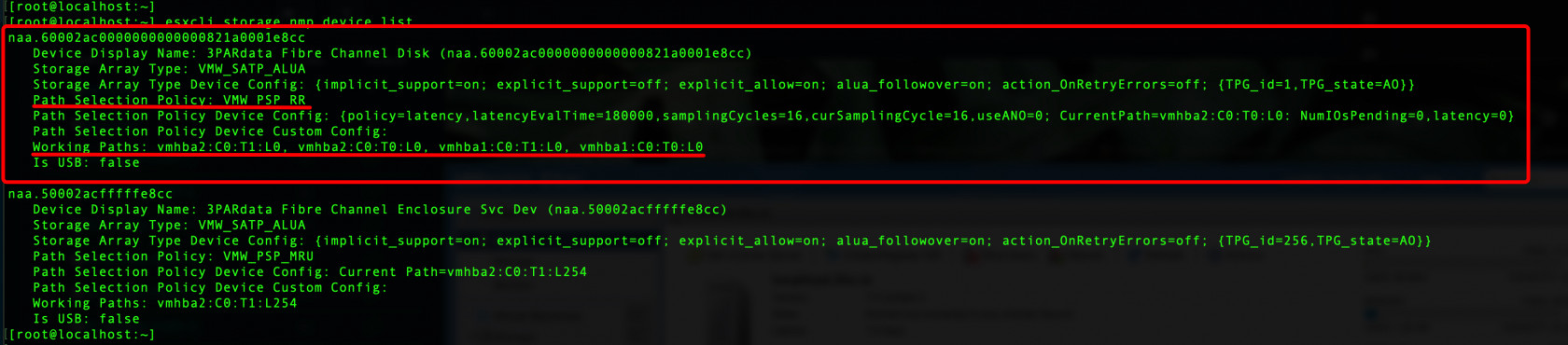
3. Change policy (if needed):
esxcli storage nmp device setpolicy --device=naa.XXXX --psp=VMW_PSP_RR
4. Replace naa.XXXX with the actual device identifier.
esxcli storage nmp device list
5. Check HBA and LUN
esxcli storage core adapter list
6. Type: fibre, статус: online.
esxcli storage core adapter device list -A vmhbaX
Replace vmhbaX with the HBA name and verify LUN and target visibility.